DutyDesk, screen by screen
Sixteen steps from an app you have just installed to a bot that answers on four networks, books appointments and keeps your customer list. Every picture below is the real app, in the language you are reading — bar the two of Meta’s dashboard, which are diagrams and say so on the frame.
These screenshots are in English because you are reading in English. Switch the language above and they switch with it.
Activate your product key
The first screen asks for the product key from your purchase email. You enter it once — the app keeps it on this computer and re-checks it with the licence server every so often, so the key travels with the machine and not with you.
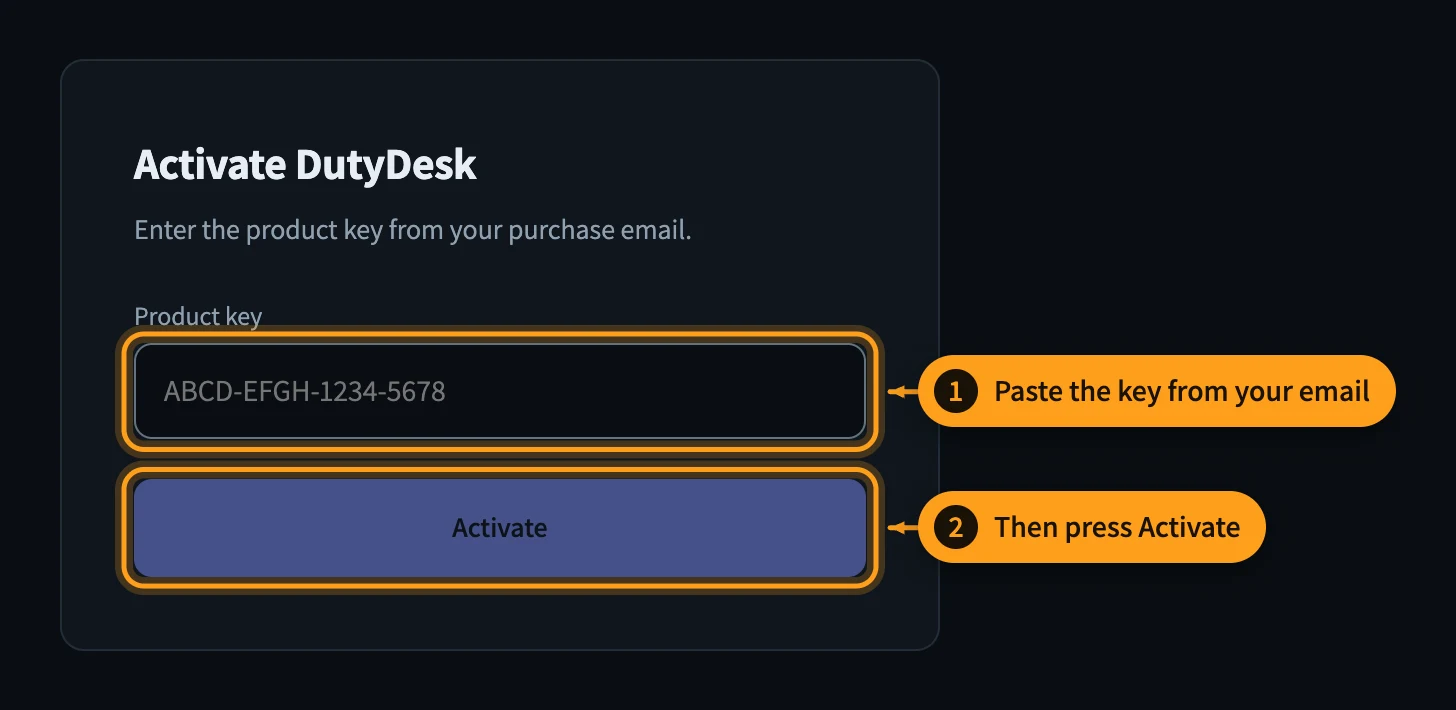
- Paste the key from your email
- Then press Activate
Put the app in your language
DutyDesk speaks English, Hebrew, Russian, Ukrainian and Arabic. Settings → Appearance switches the whole interface at once, with no restart. Hebrew and Arabic also turn the layout right to left. The choice is kept on this computer and is never sent anywhere.
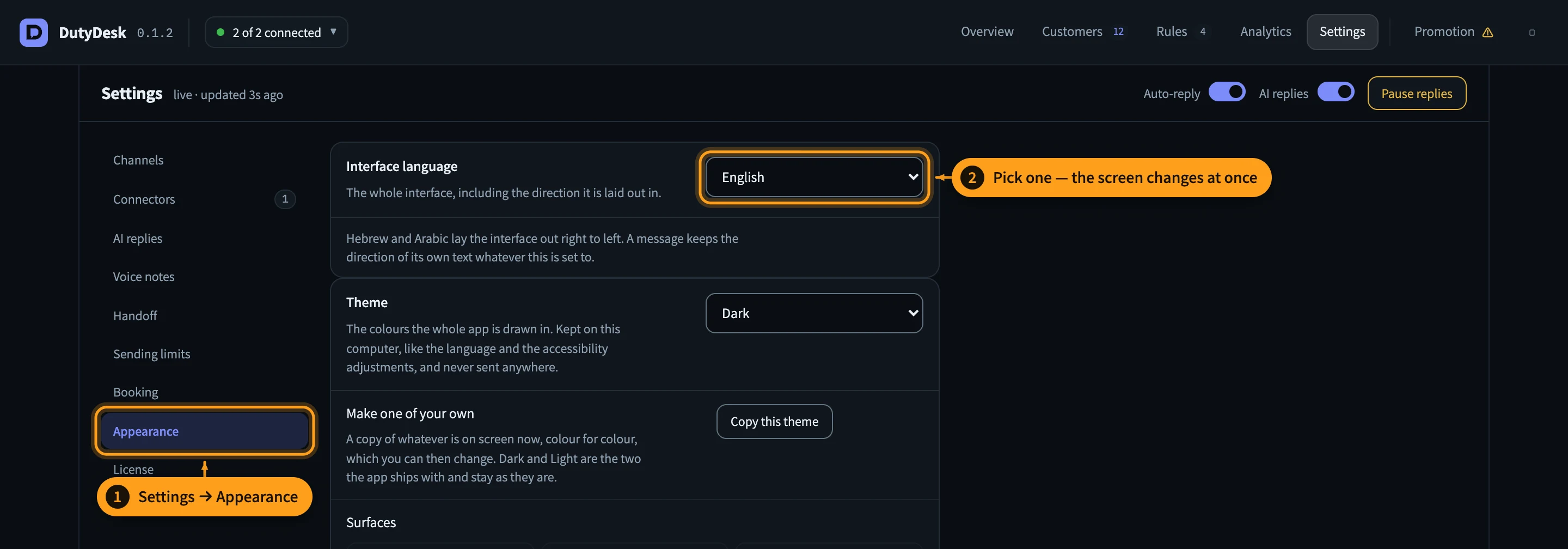
- Settings → Appearance
- Pick one — the screen changes at once
Add a channel
Every connection gets its own card under Settings → Channels. Open Add a channel and pick the network. You can have more than one of each — two WhatsApp numbers, or a WhatsApp number and a Telegram bot side by side — and each one keeps its own name, its own daily cap and its own rules.
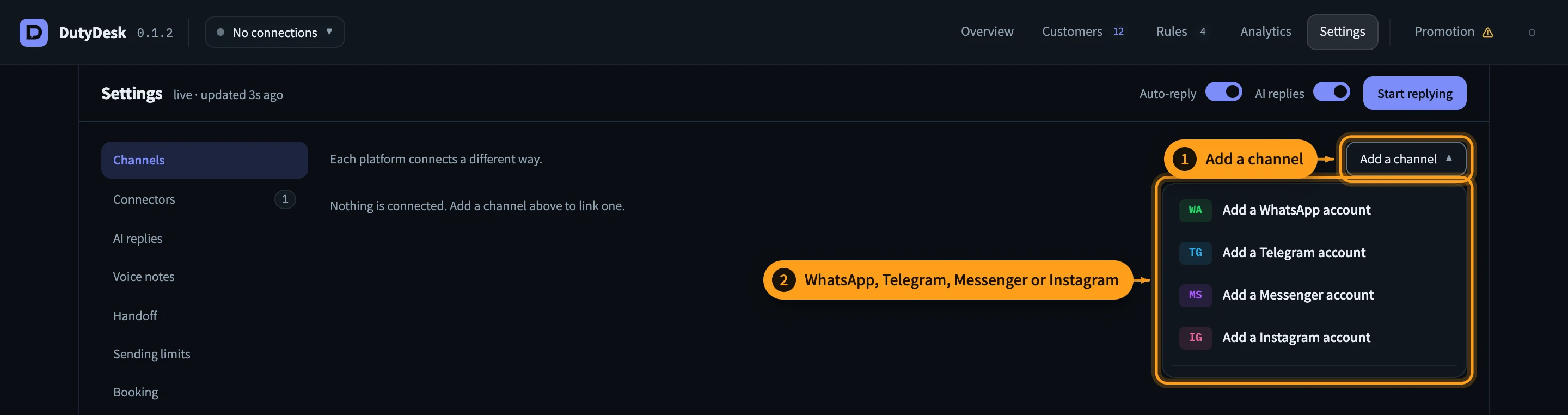
- Add a channel
- WhatsApp, Telegram, Messenger or Instagram
Link WhatsApp by scanning the code
WhatsApp links the way a second device does. On your phone open WhatsApp → Settings → Linked devices → Link a device, and point the camera at the code on the card. The code refreshes by itself until it is scanned, and the pill on the card says where the connection has got to.
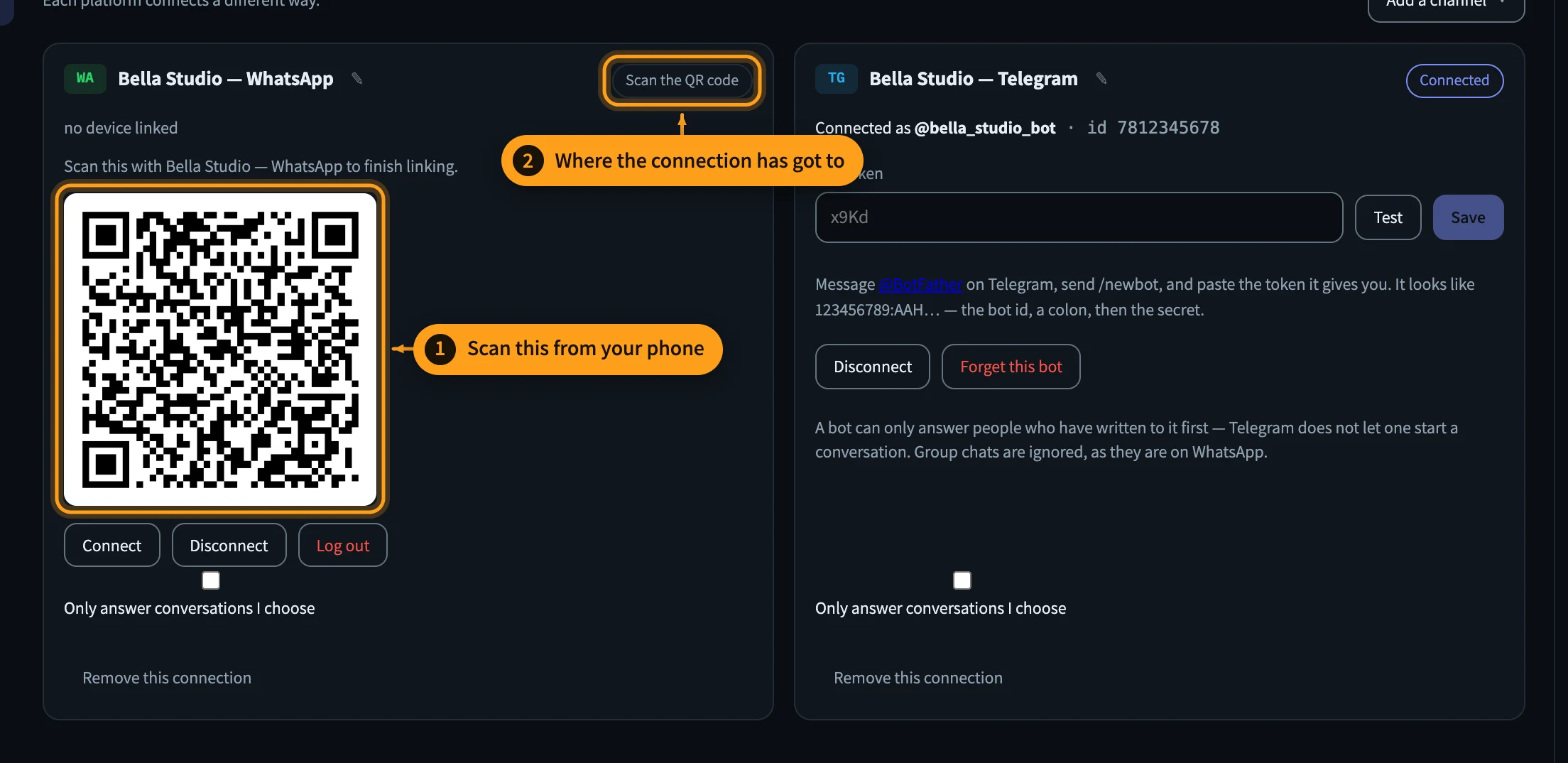
- Scan this from your phone
- Where the connection has got to
Connect a Telegram bot
Telegram needs a bot rather than a phone. Message @BotFather, send /newbot, and paste the token it gives you back. Test asks Telegram who the token belongs to before anything is saved, so a typo is caught here rather than by silence later.
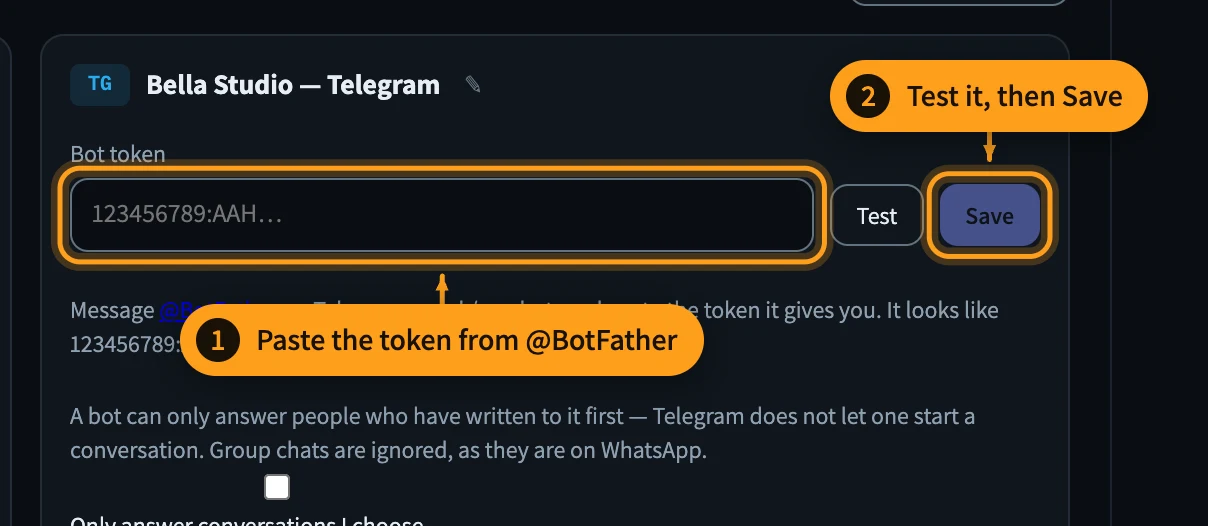
- Paste the token from @BotFather
- Test it, then Save
Messenger: make your own Meta app
Messenger and Instagram are one connection made of two halves, and this half is on Meta rather than in DutyDesk. You need a Facebook Page you administer — a personal profile has no messaging interface a program may use — and an app of your own to reach it through. Everything you have read about App Review is about reaching somebody else’s Page. Your own app on your own Page needs none of it.
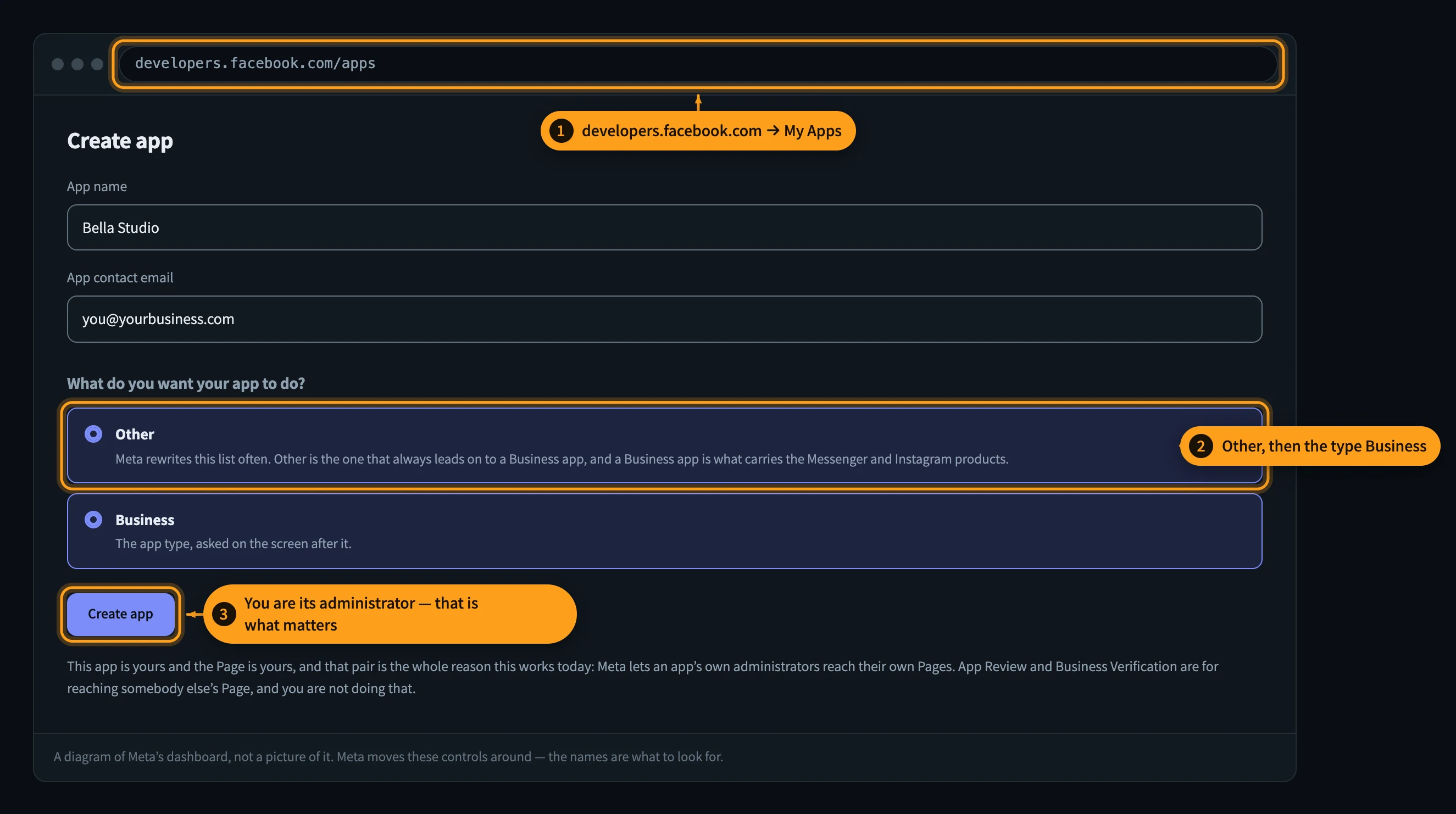
- developers.facebook.com → My Apps
- Other, then the type Business
- You are its administrator — that is what matters
Mint a token that does not expire
Meta’s business settings hand out a system user token, and DutyDesk is built for exactly that: it asks your Page for its own token and checks the answer really is your Page, so you never run that step by hand. The one choice on this screen that nobody warns you about is the expiry. A token minted with 60 days or 1 hour on it stops the bot the moment it runs out, mid-conversation, with nothing wrong at your end — set it to Never.
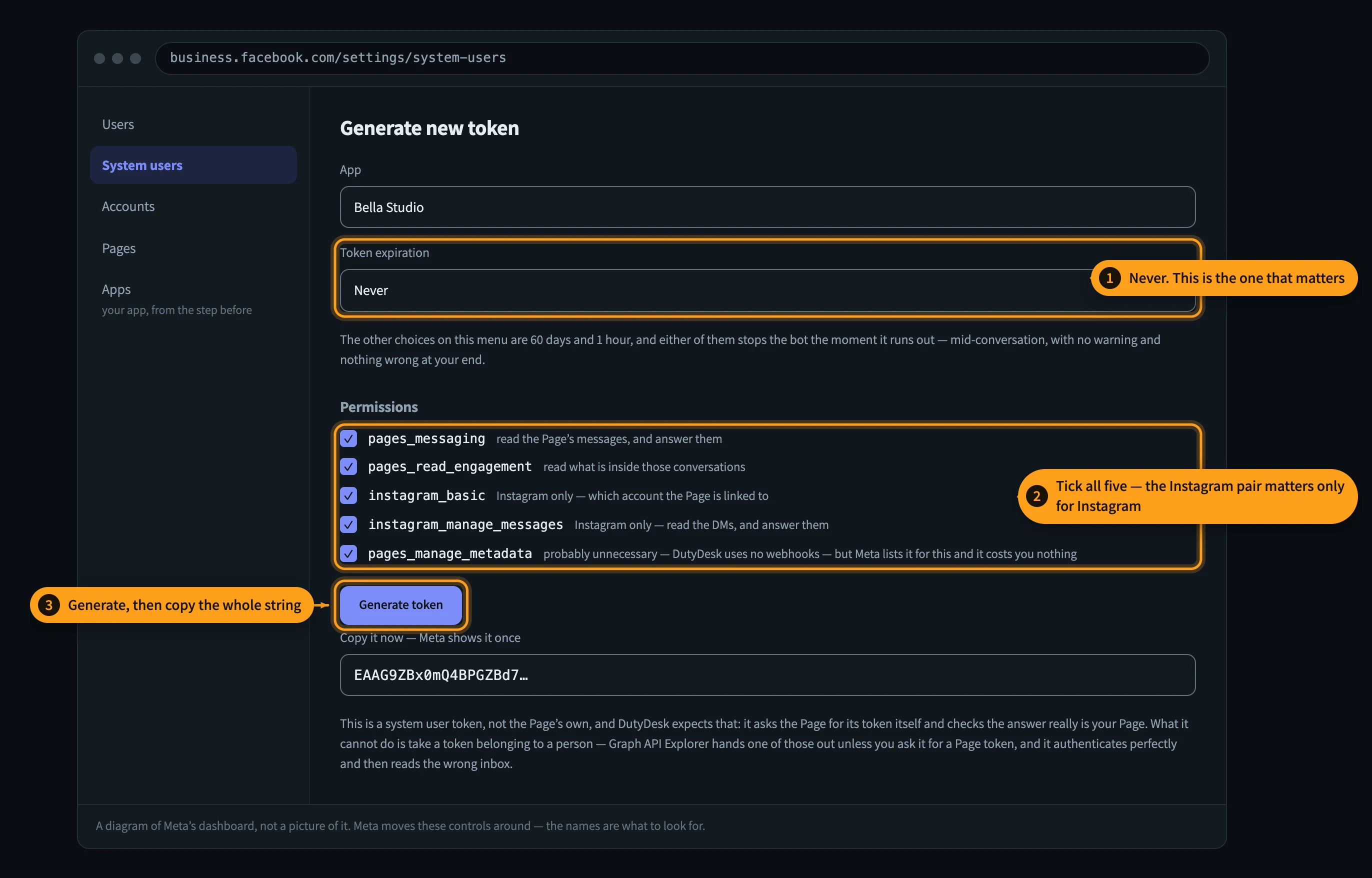
- Never. This is the one that matters
- Tick all five — the Instagram pair matters only for Instagram
- Generate, then copy the whole string
Paste it on the Messenger card
Add a channel → Messenger gives the Page its own card, and the token goes in it. Press Test before Save: it does not answer whether the token works — almost any token does — it answers which Page it speaks for, and that is the question. A token belonging to a person passes every other check and then reads that person’s inbox instead of the Page’s. Messenger also lets a business reply only within 24 hours of a customer writing, and the clock restarts each time they write again.
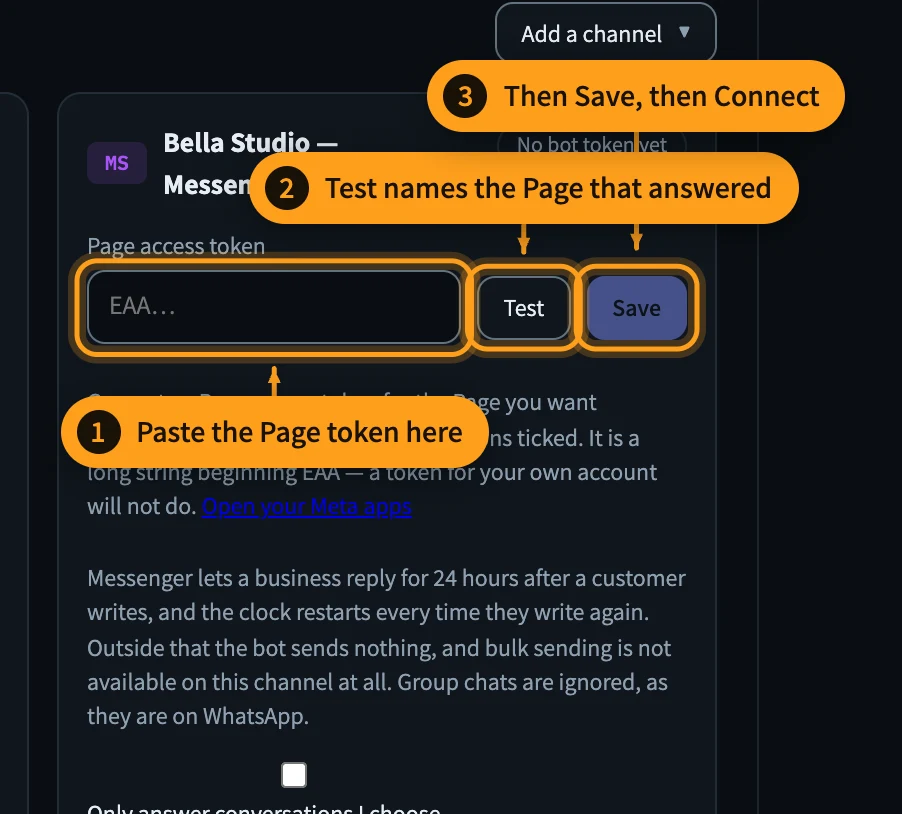
- Paste the Page token here
- Test names the Page that answered
- Then Save, then Connect
Instagram, on the same token
Instagram messages are read through the Facebook Page the account is linked to, so this is the same Page token again, on a card of its own. Your account has to be a professional one and linked to that Page. The card names the handle it answers as rather than the Page, because the handle is what your customers see — if it names an account you do not recognise, the token is reaching the wrong one. One setting lives on your phone and nothing here can report it: with it off, everything on this card is correct and no message ever arrives.
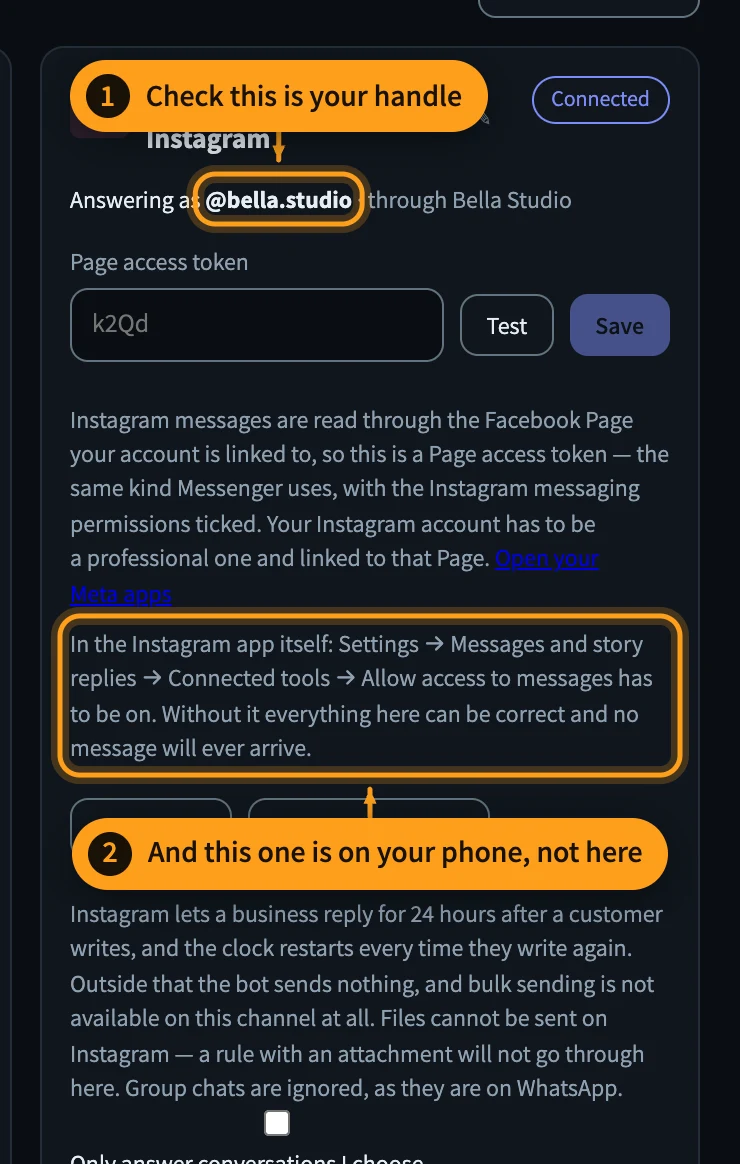
- Check this is your handle
- And this one is on your phone, not here
Write your first rule
A rule is a thing to watch for and an answer to send. Give it the words a customer would actually write, then the reply. The reply can carry the contact’s name, the time of day or your opening hours, and a cooldown stops the same person being answered twice in a row.
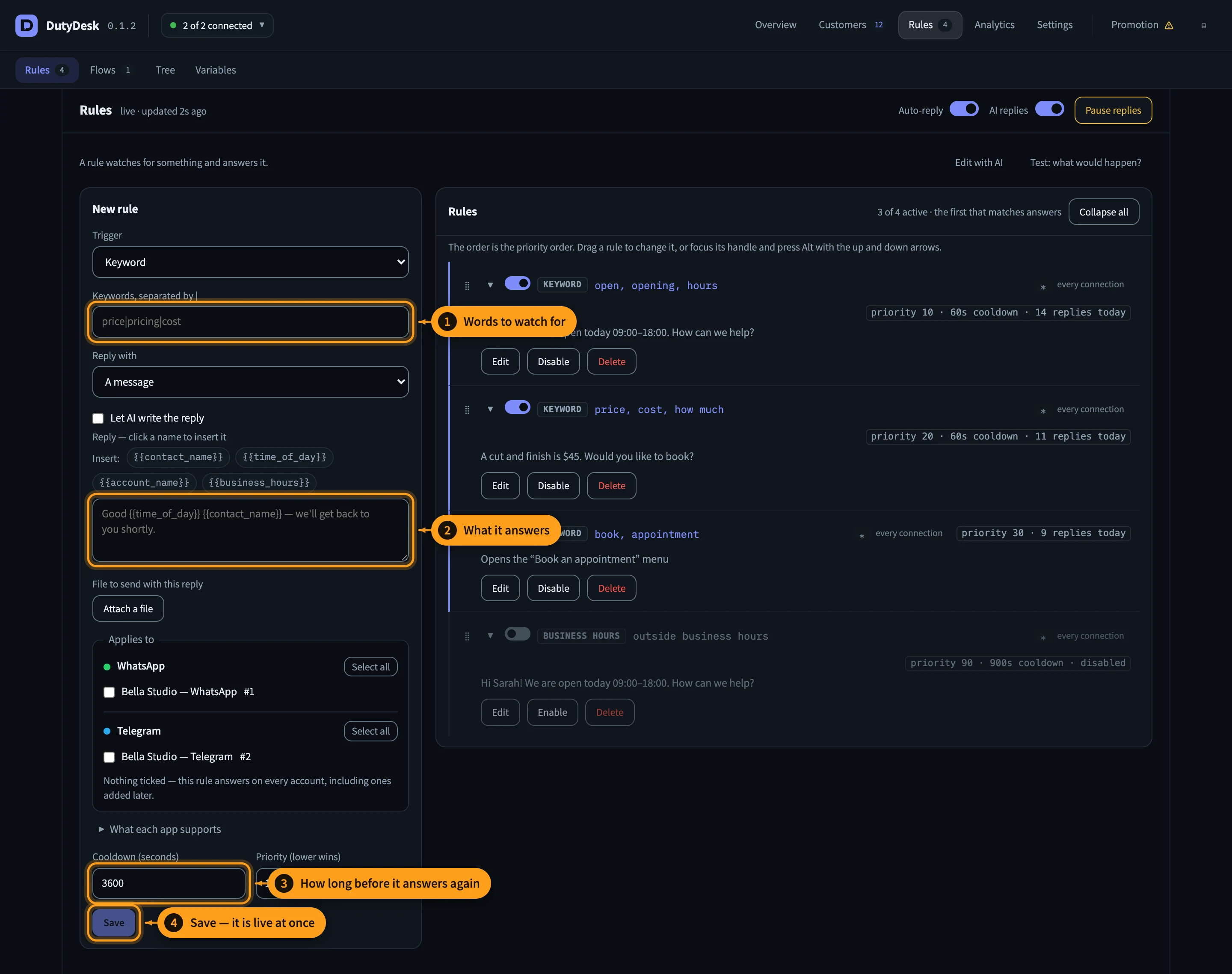
- Words to watch for
- What it answers
- How long before it answers again
- Save — it is live at once
Build a menu that asks back
When one answer is not enough, a flow asks a question and offers choices. Telegram draws them as tappable buttons; WhatsApp sends the same choices as a numbered list. A step can also offer your free appointment times and book the one the customer picks.
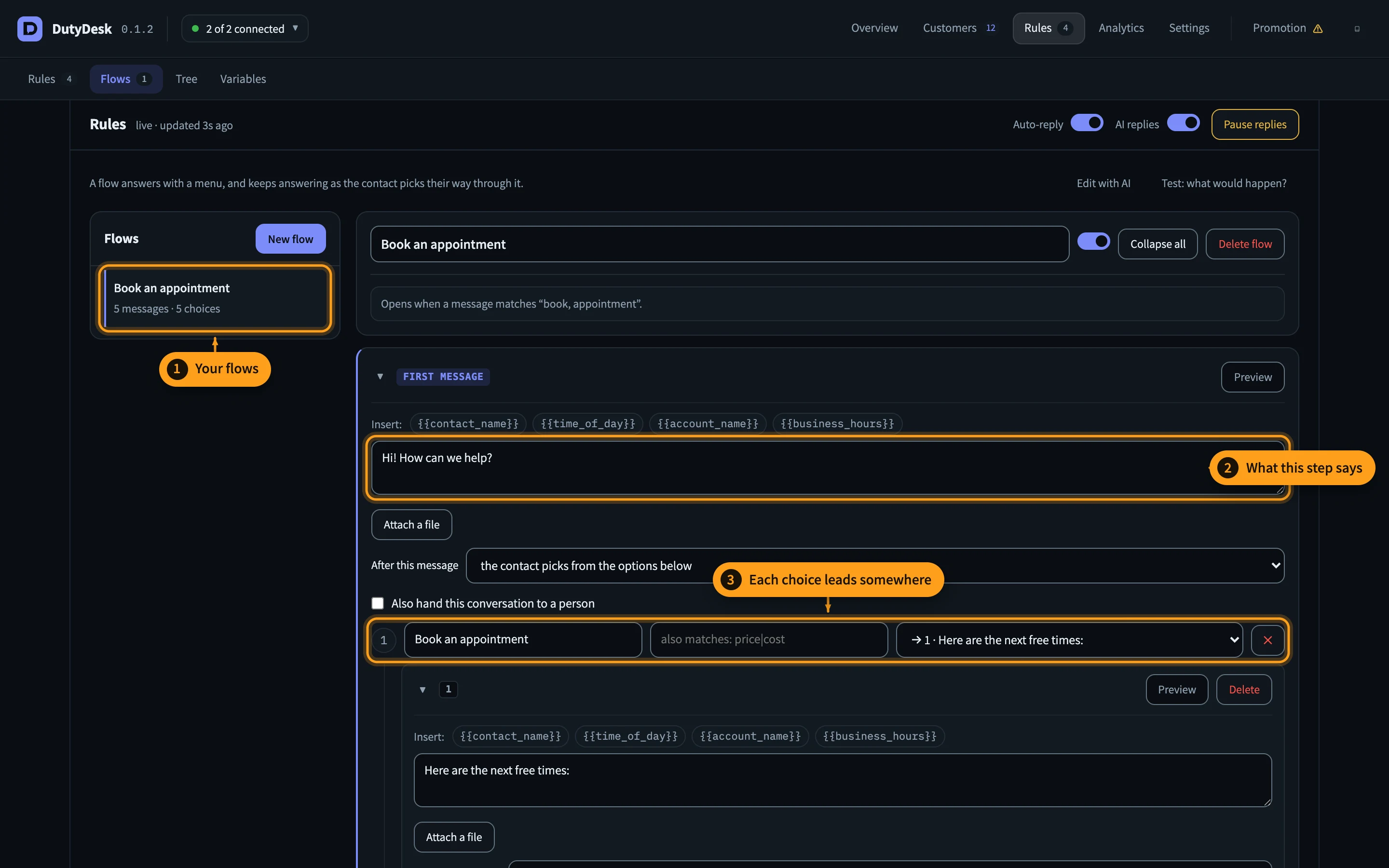
- Your flows
- What this step says
- Each choice leads somewhere
Read the day at a glance
Overview is the screen you leave open. It shows what came in and what went out over the last 24 hours, how quickly the bot answered, and how much of today’s send cap is spent. The two switches at the top stop and start every reply on every connection.
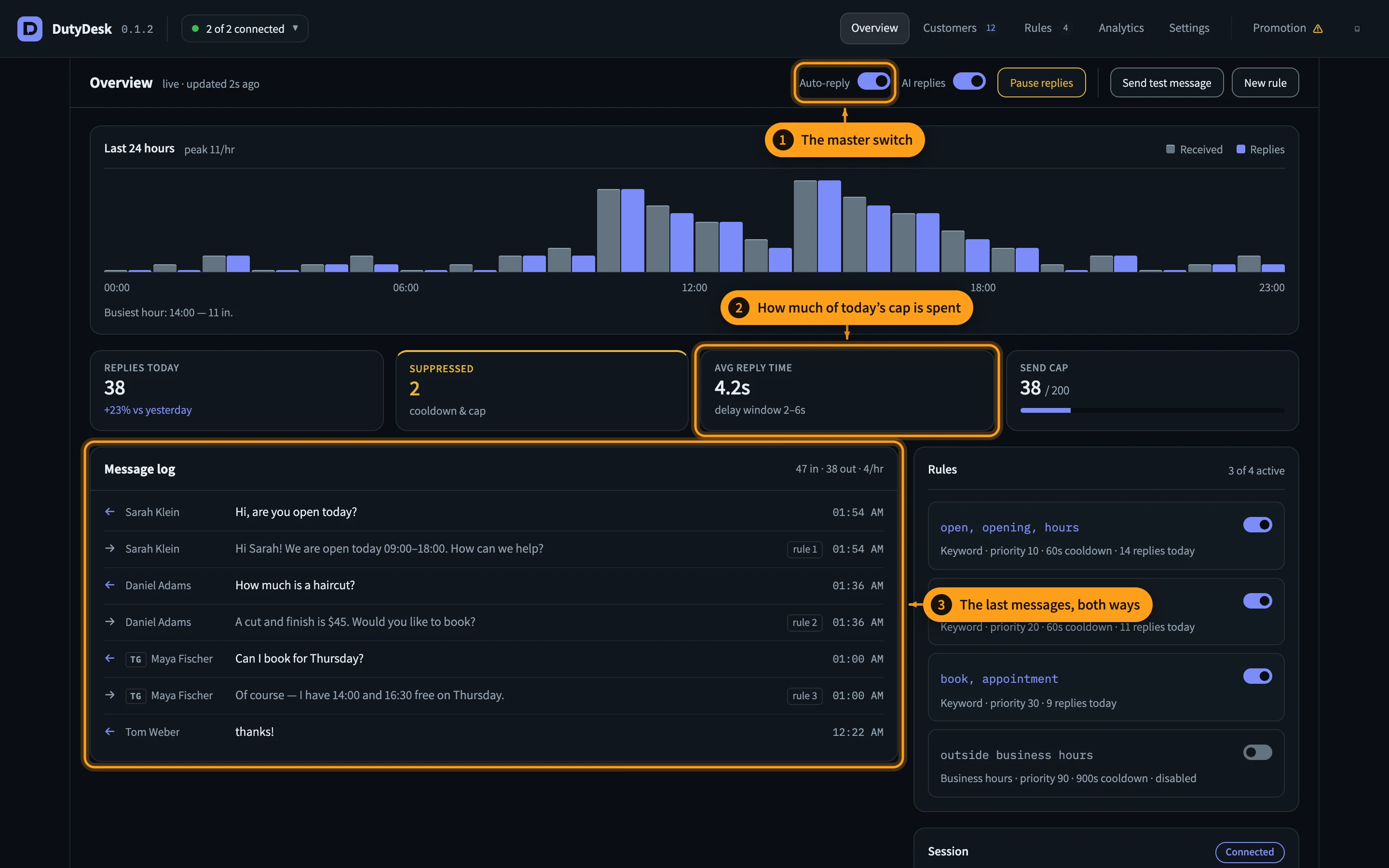
- The master switch
- How much of today’s cap is spent
- The last messages, both ways
Read the message log
Every message is written down, and so is every decision — including the ones where the bot deliberately stayed quiet. The tag on a reply names the rule that produced it, so “why did it say that?” is a question with an answer. Switch to Conversations to read one person’s thread.
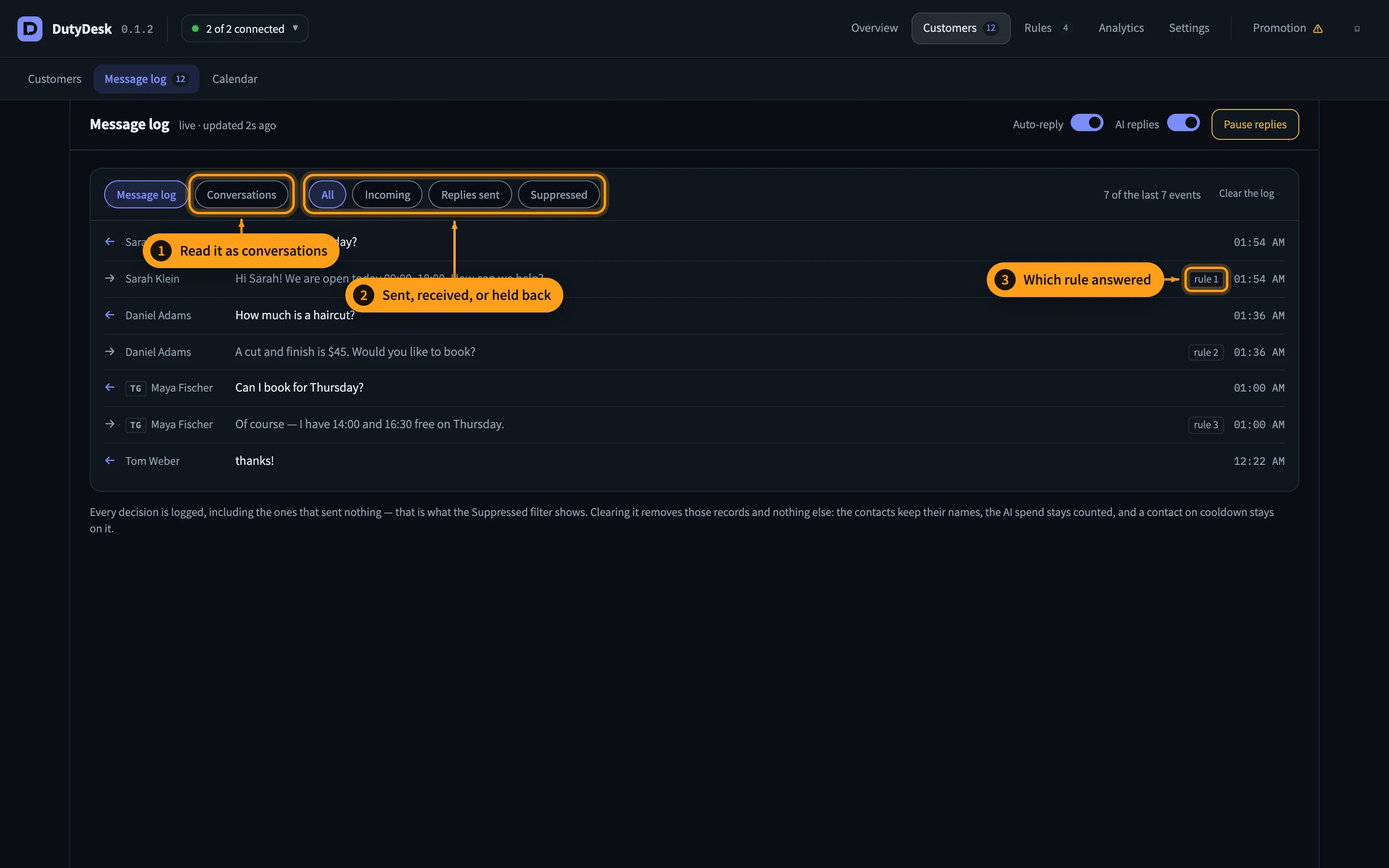
- Read it as conversations
- Sent, received, or held back
- Which rule answered
Keep the customer list
Everyone who has ever written is here, with the stage they are at and the whole history beside them. Nothing has to be typed twice: the card fills itself from the conversation, and anything the bot asked and was told is kept against the person who said it.
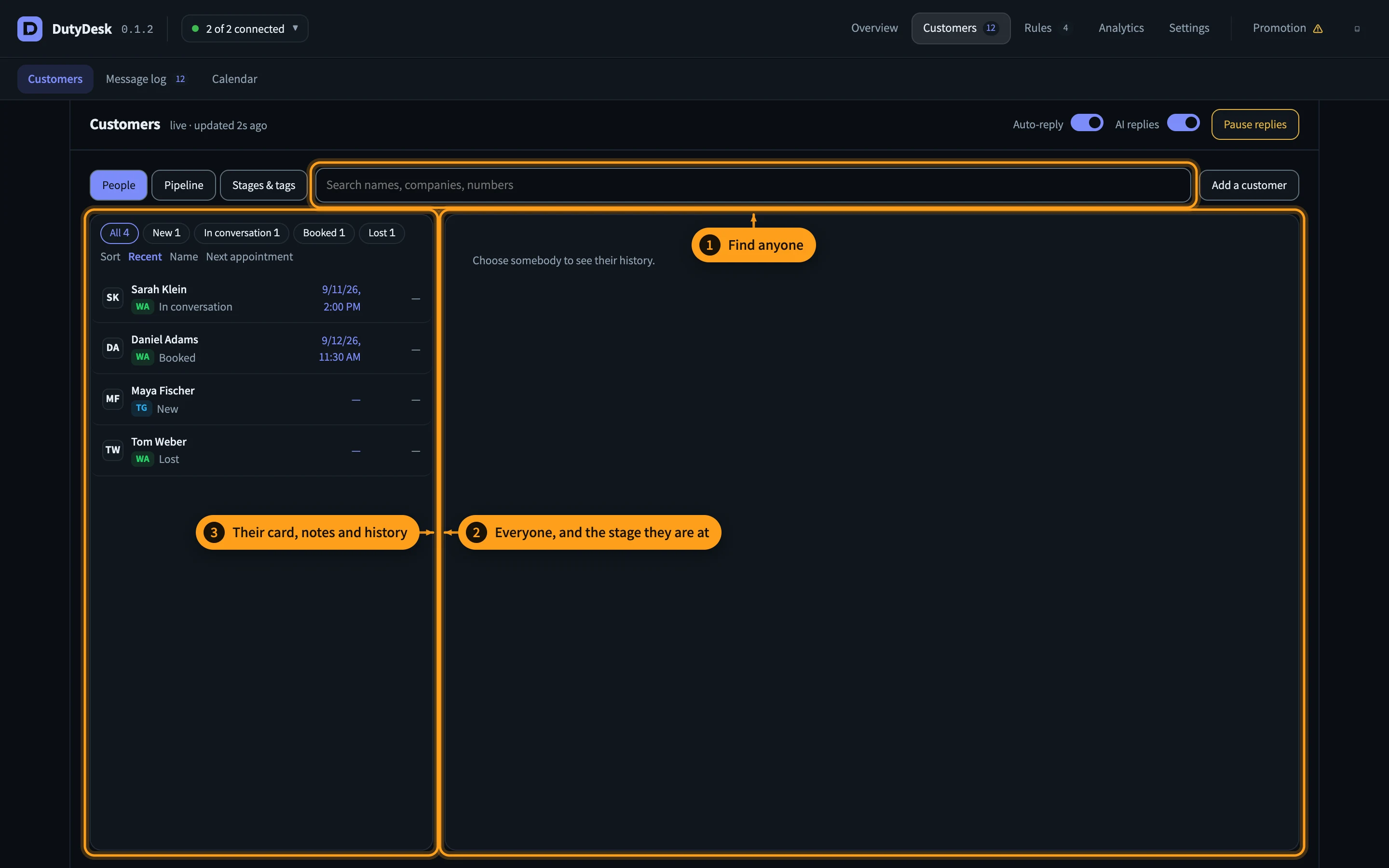
- Find anyone
- Everyone, and the stage they are at
- Their card, notes and history
Take bookings
A booking step offers only times you are actually free, and writes the appointment straight into this week. Connect a Google calendar and it is written there too, with whatever is already in your day counted as busy so nothing is offered twice.
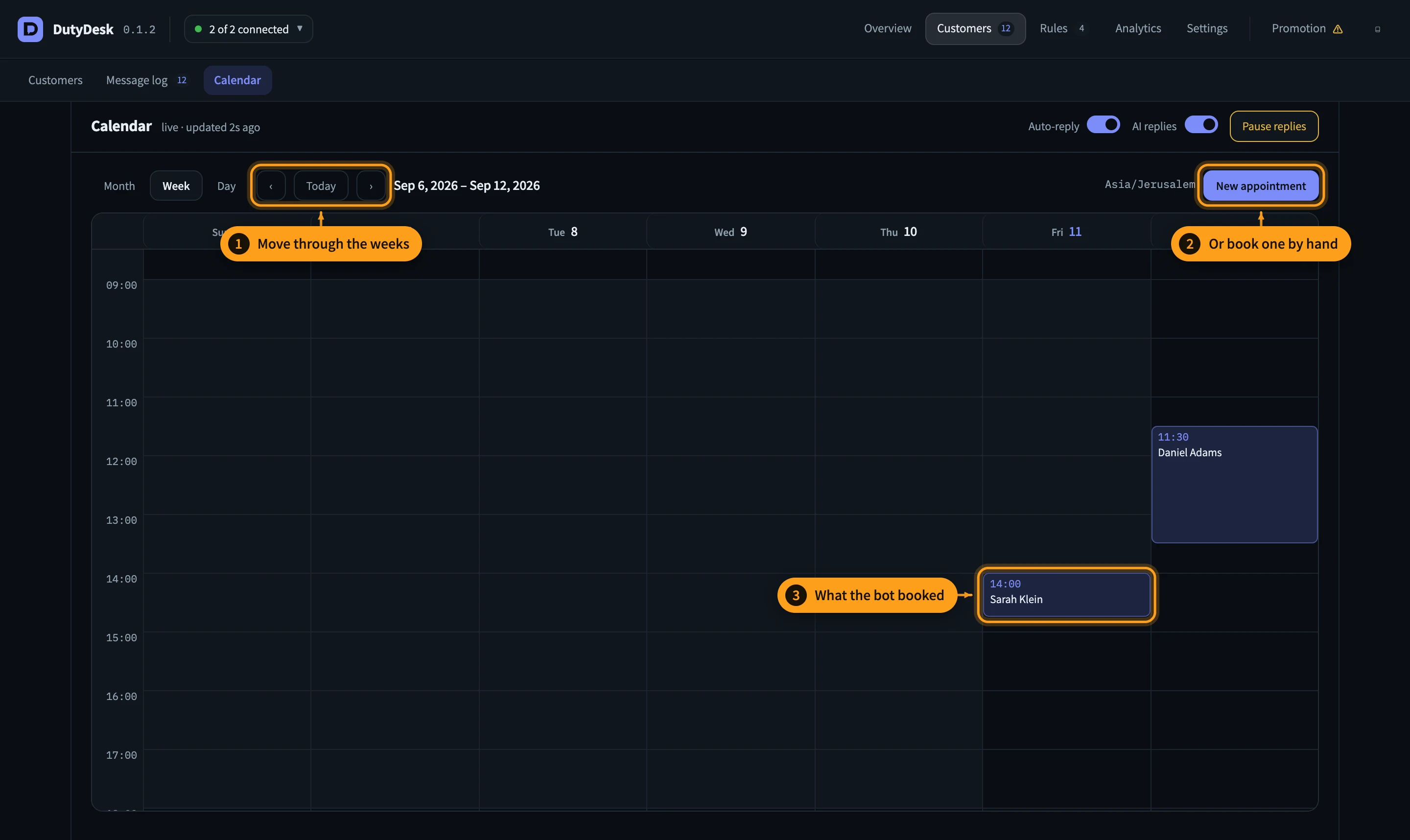
- Move through the weeks
- Or book one by hand
- What the bot booked
Set the limits that keep the number safe
This is the screen that keeps an unofficial WhatsApp number out of trouble. A daily cap, a random delay before each reply and a per-contact cooldown together mean the bot never answers like something that was switched on five minutes ago. Start low and raise it slowly.
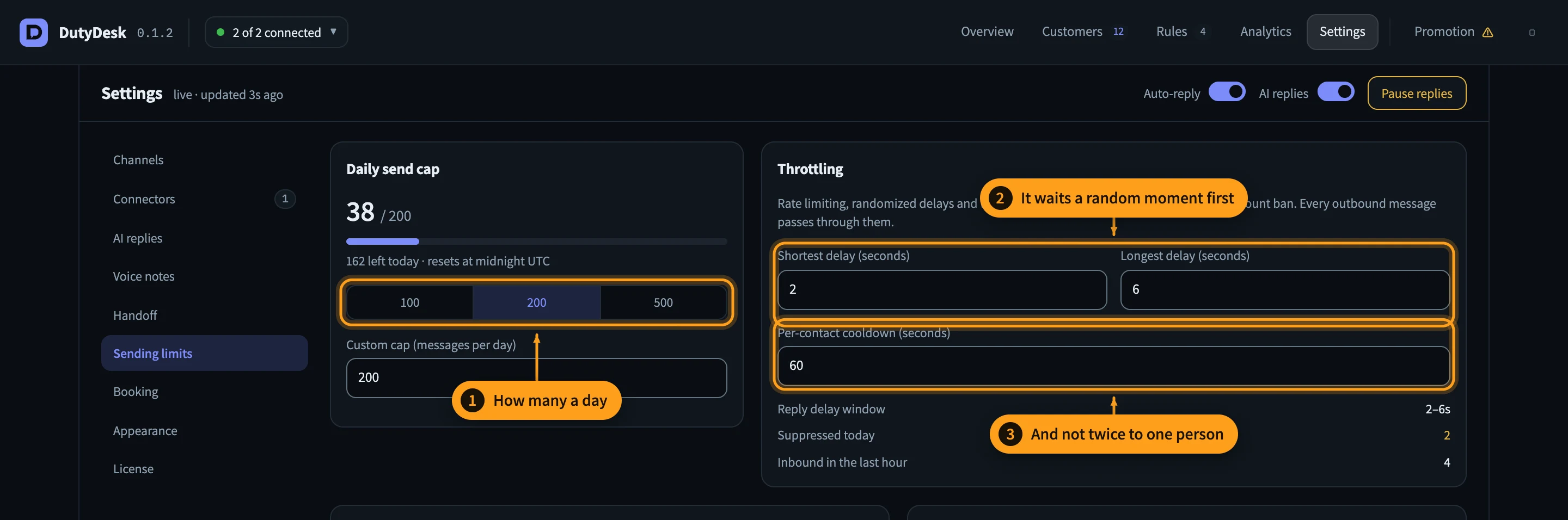
- How many a day
- It waits a random moment first
- And not twice to one person
That is the whole app.
The written guide goes further into each screen, and the download is the same three-day trial with no card.